Frequently Asked Questions
Q. How do I sign up?
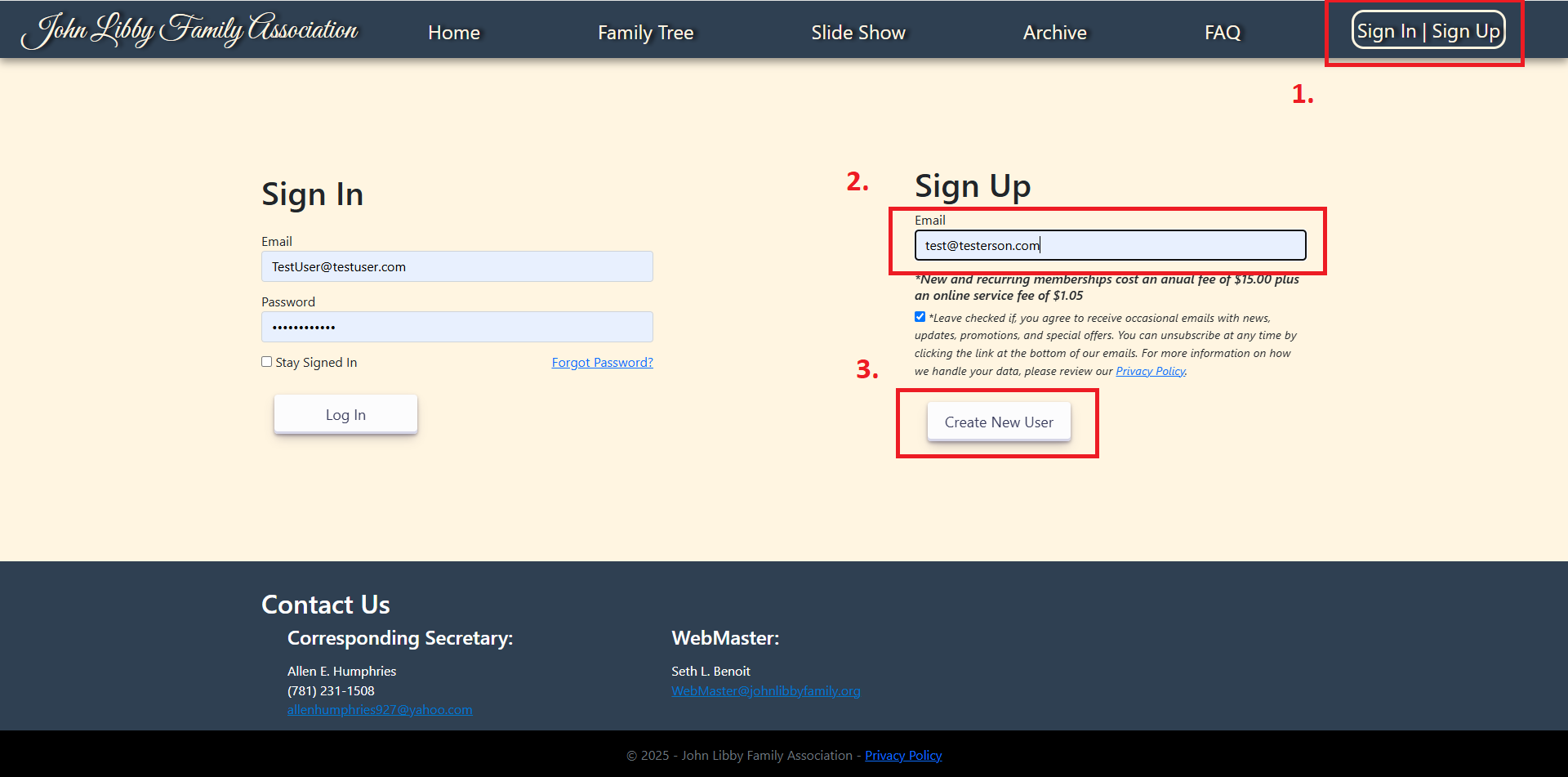
Start by clicking "Sign In | Sign Up", on the right hand side (or scroll down on mobile) enter your email and click "Create New User".
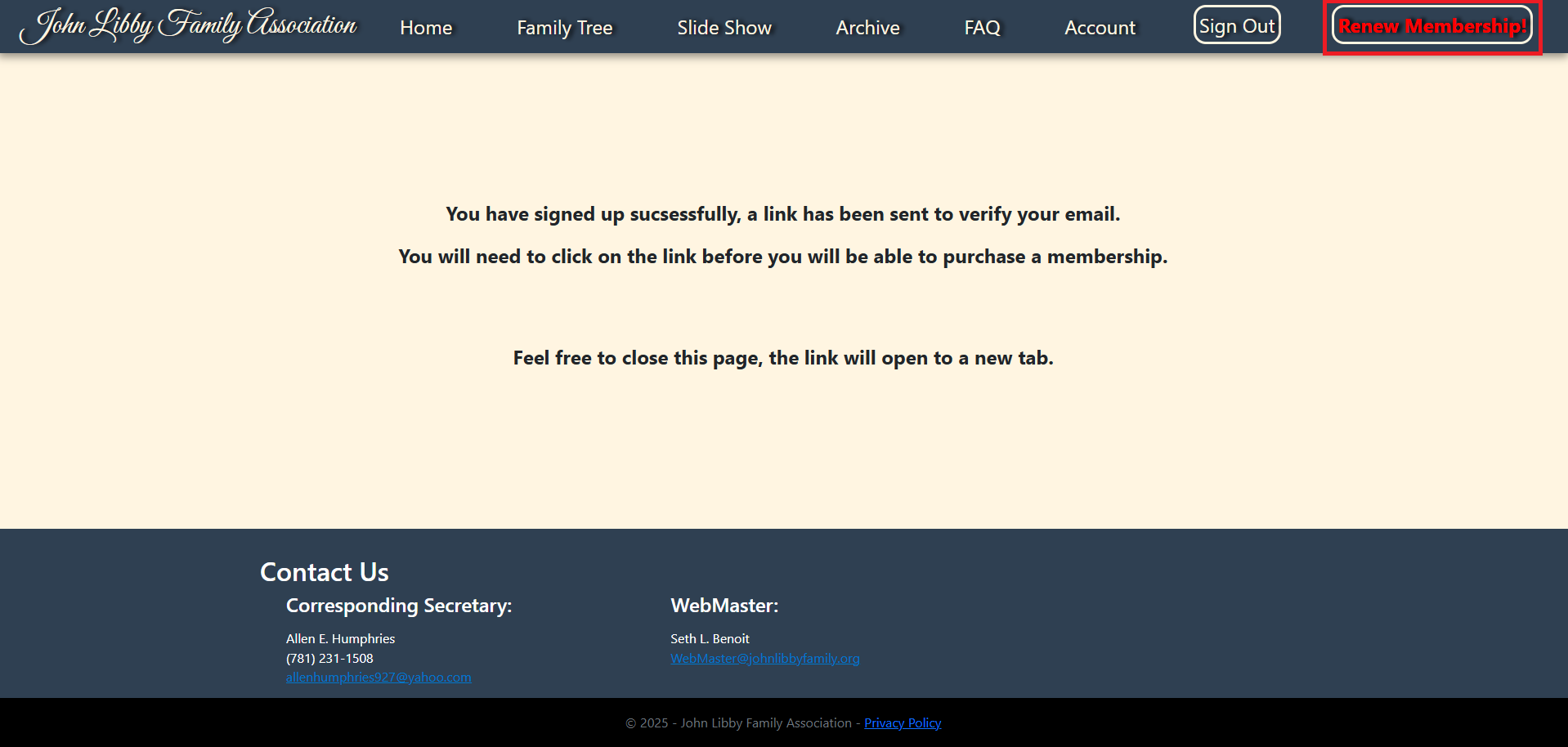
Fill in all required fields and questions, required fields have a red *. At the bottom click "Submit". Assuming there are no issues with the information you provided you will be signed in automatically and prompted to buy a membership.
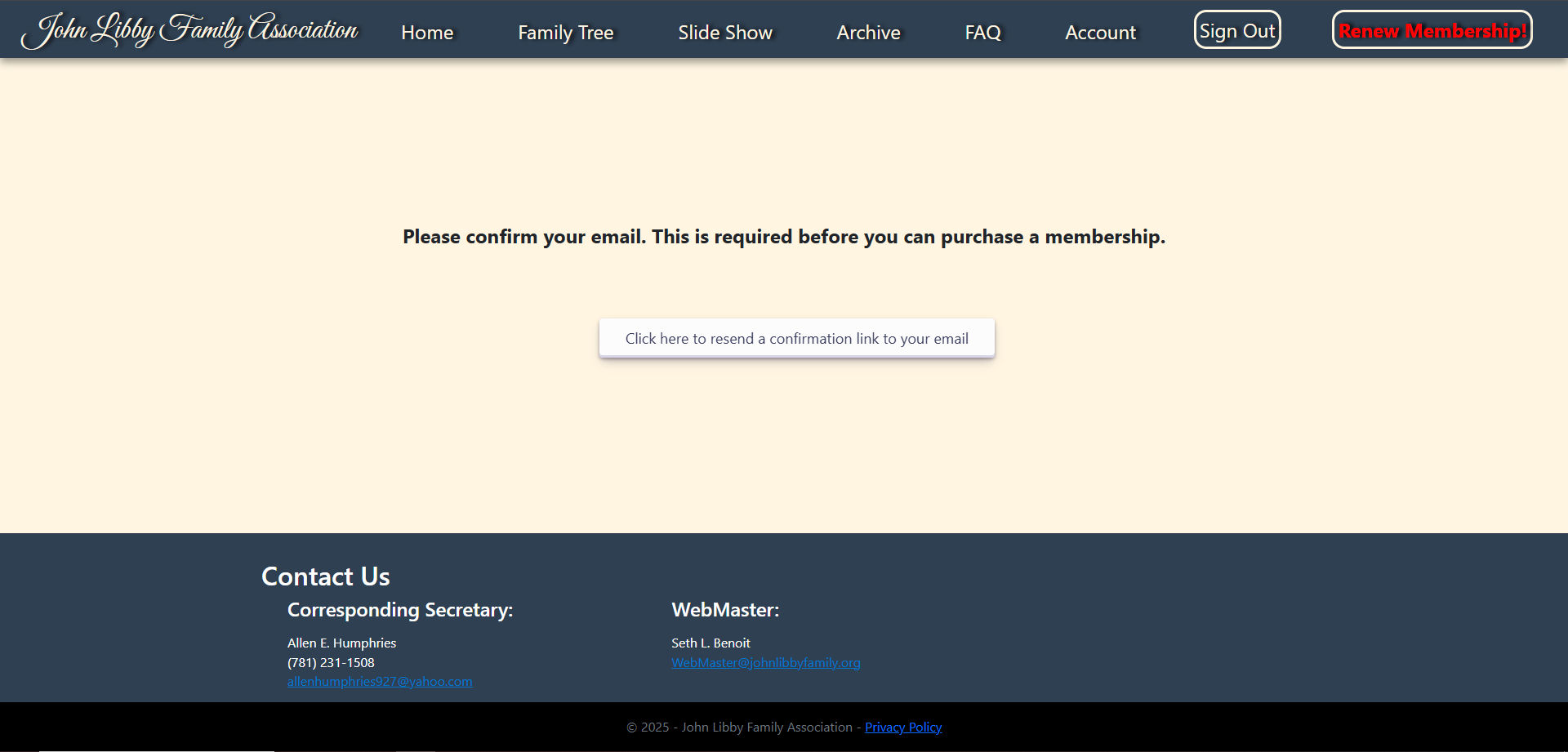
Attempting to purchase a membership before you verify your email will bring you to a page that can resend your verification email if necessary.
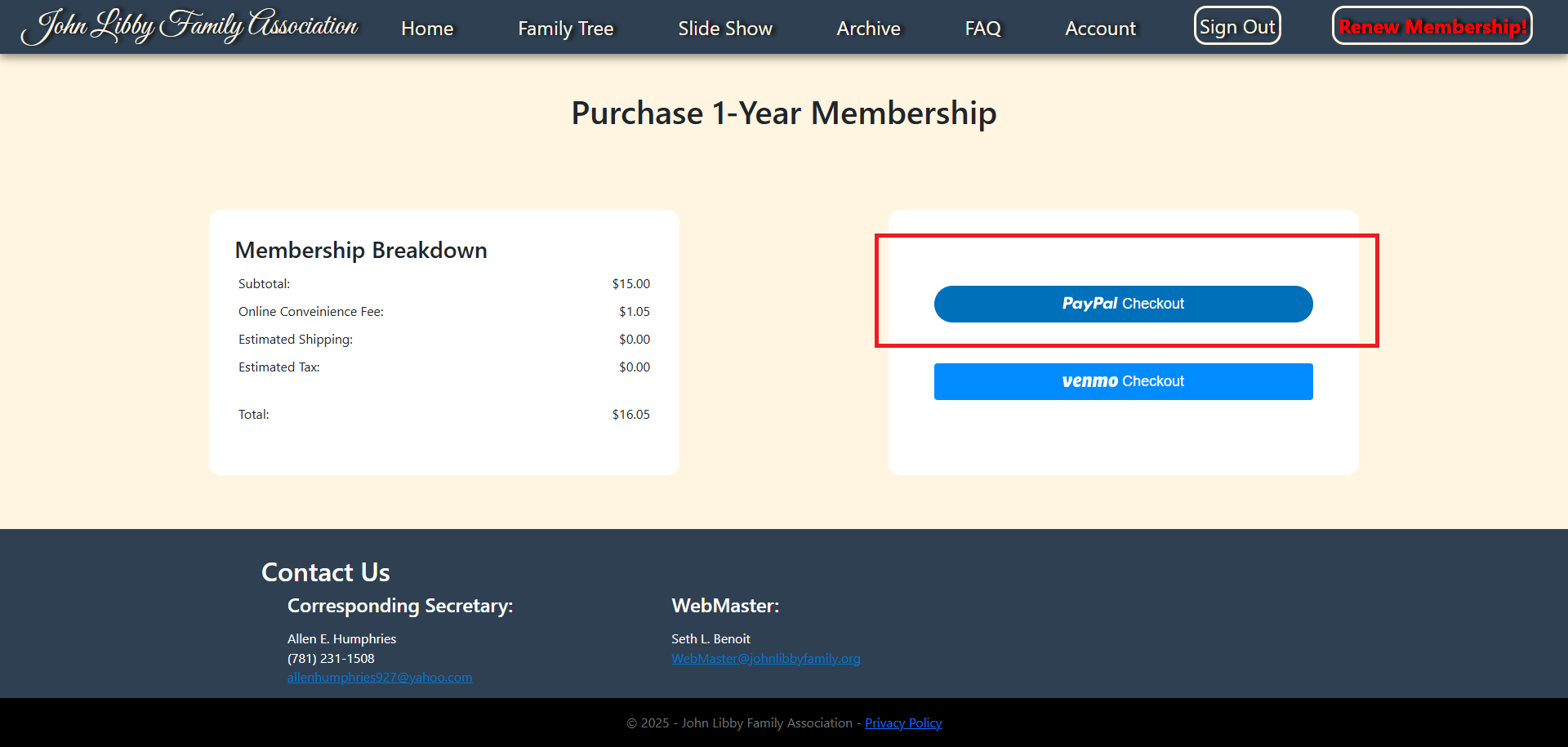
You can either pay for a membership right there with PayPal or any card through the PayPal portal. Or you can send a check:
Please make checks payable to: John Libby Family Association and mail to:
John Libby Reunion Registrations
c/o Mark A. Libby
P.O. Box 907
Townsend MA 01469
Q. I'm an existing JLFA member, do I need to pay for another membership to access the 'members only' content of the website?
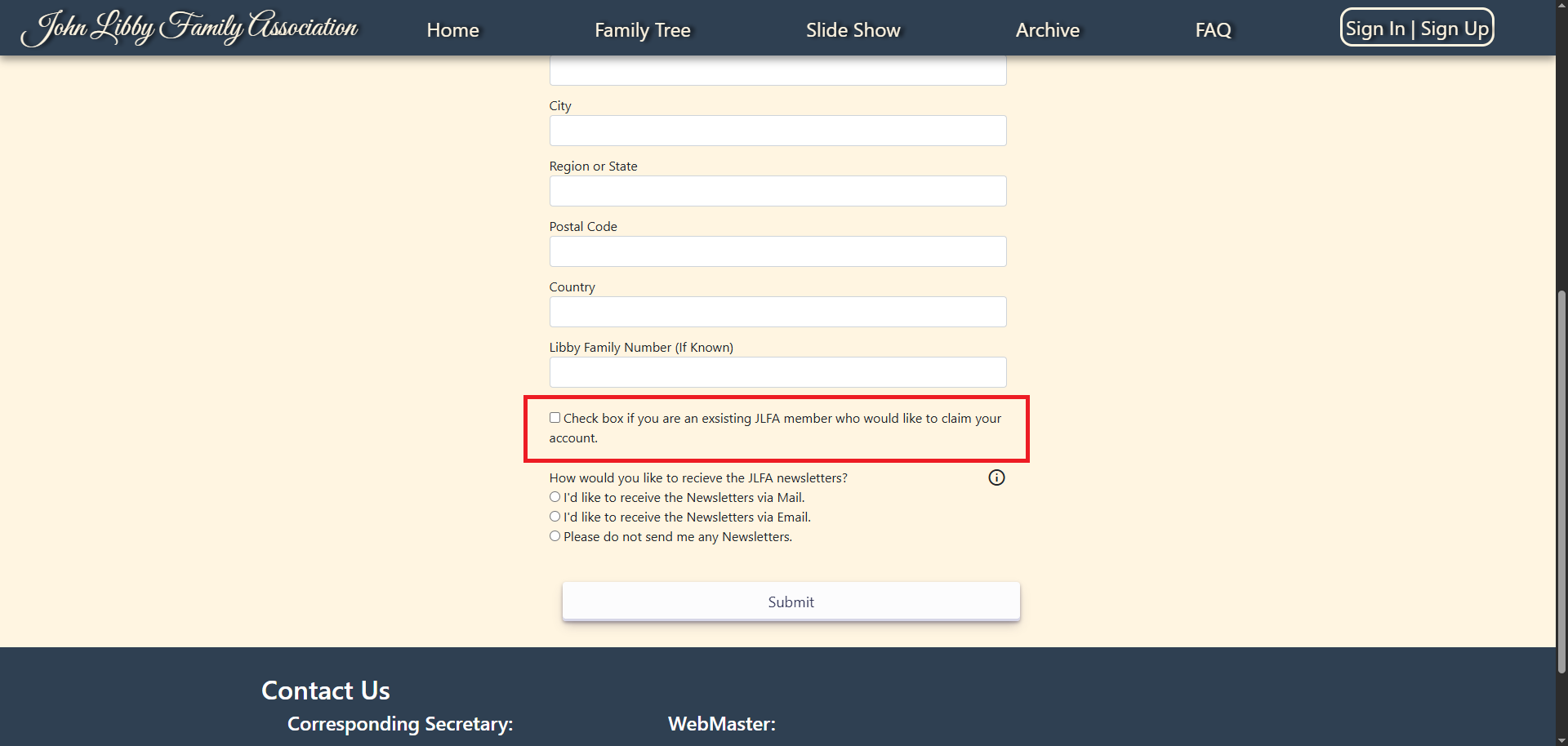
No, if you have an existing life or annual membership then that membership rolls over into the website. Depending on whether we had your email on file, we've either built a regular account for you or, if not, we've built a legacy account as a placeholder. If you're not sure, you should sign up for an account. At the bottom of the signup page there is a checkbox "Check box if you are an existing JLFA member who would like to claim your account." If checked, the server will attempt to match your sign up information with existing legacy accounts. If it cannot find a match then the Webmaster will be notified to dig deeper for you.
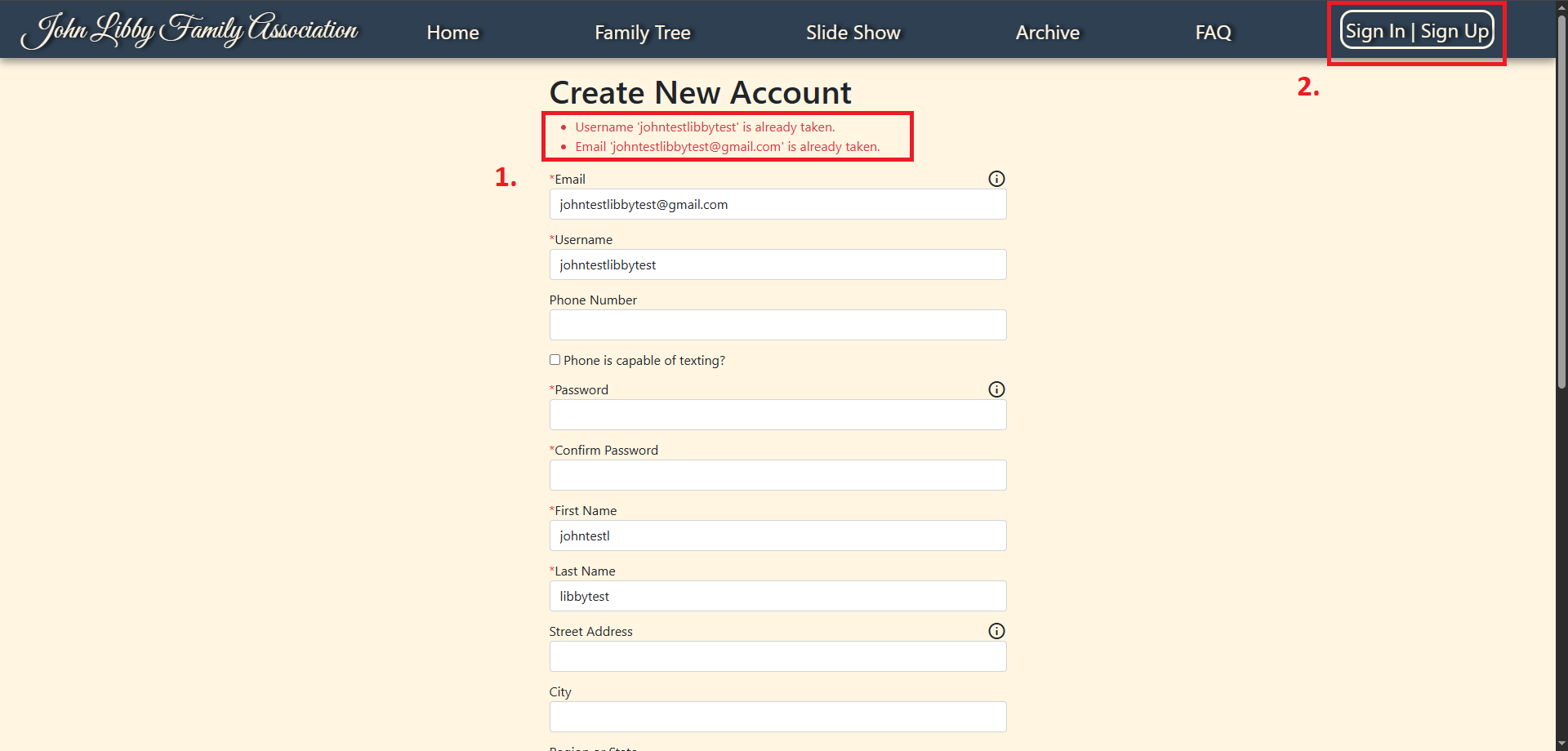
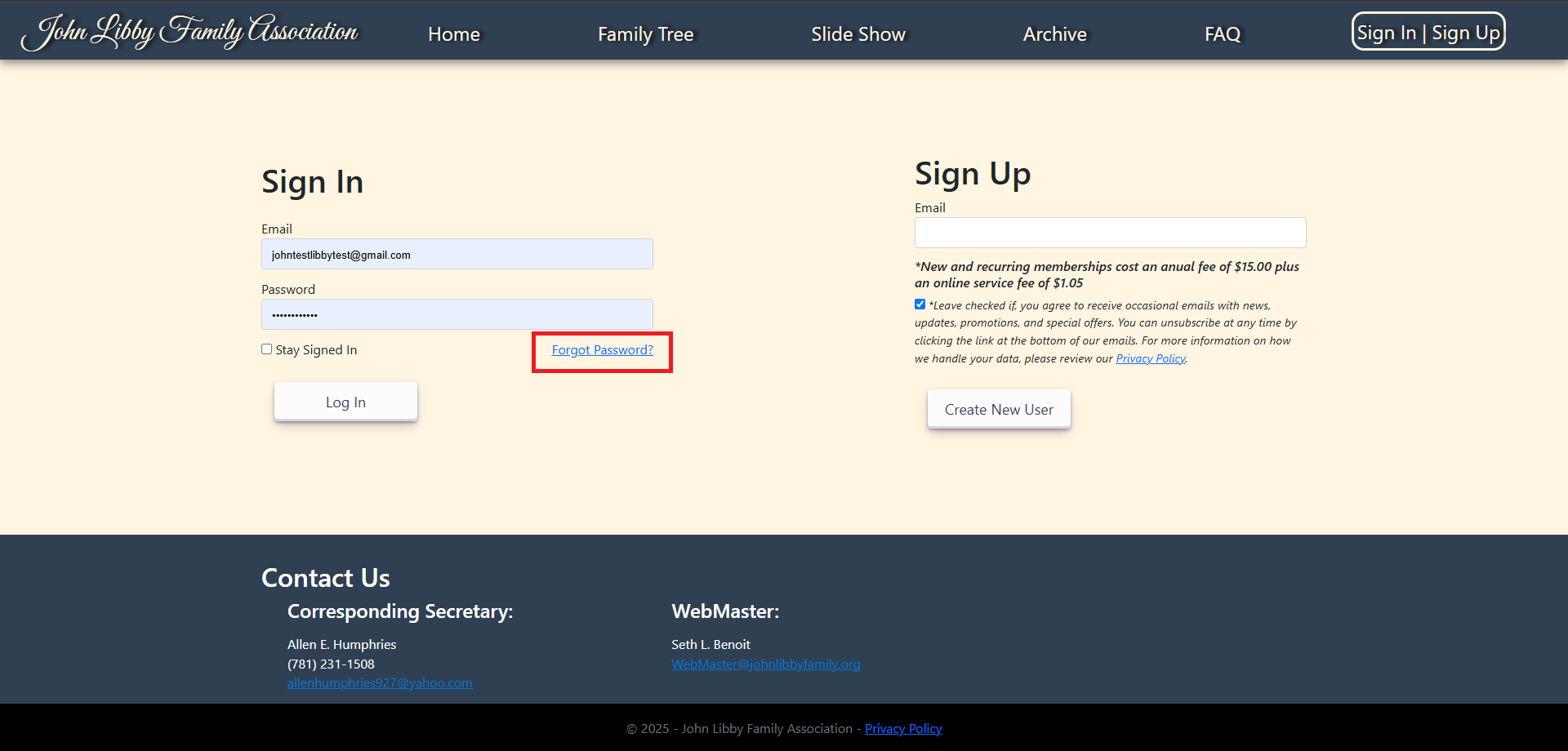
If during the sign up process you get an error that your email has already been taken then we've already built your account. Go back to the login page and use the 'Forgot Password?' function to claim your account.
Q. How do I add my family's data to the family tree?
Start in the Family Tree page by finding the lowest branch you're related to. Using the search bar on the right, start looking up relatives and when you find the lowest match click the diamond button 'Rebuild as Head'.
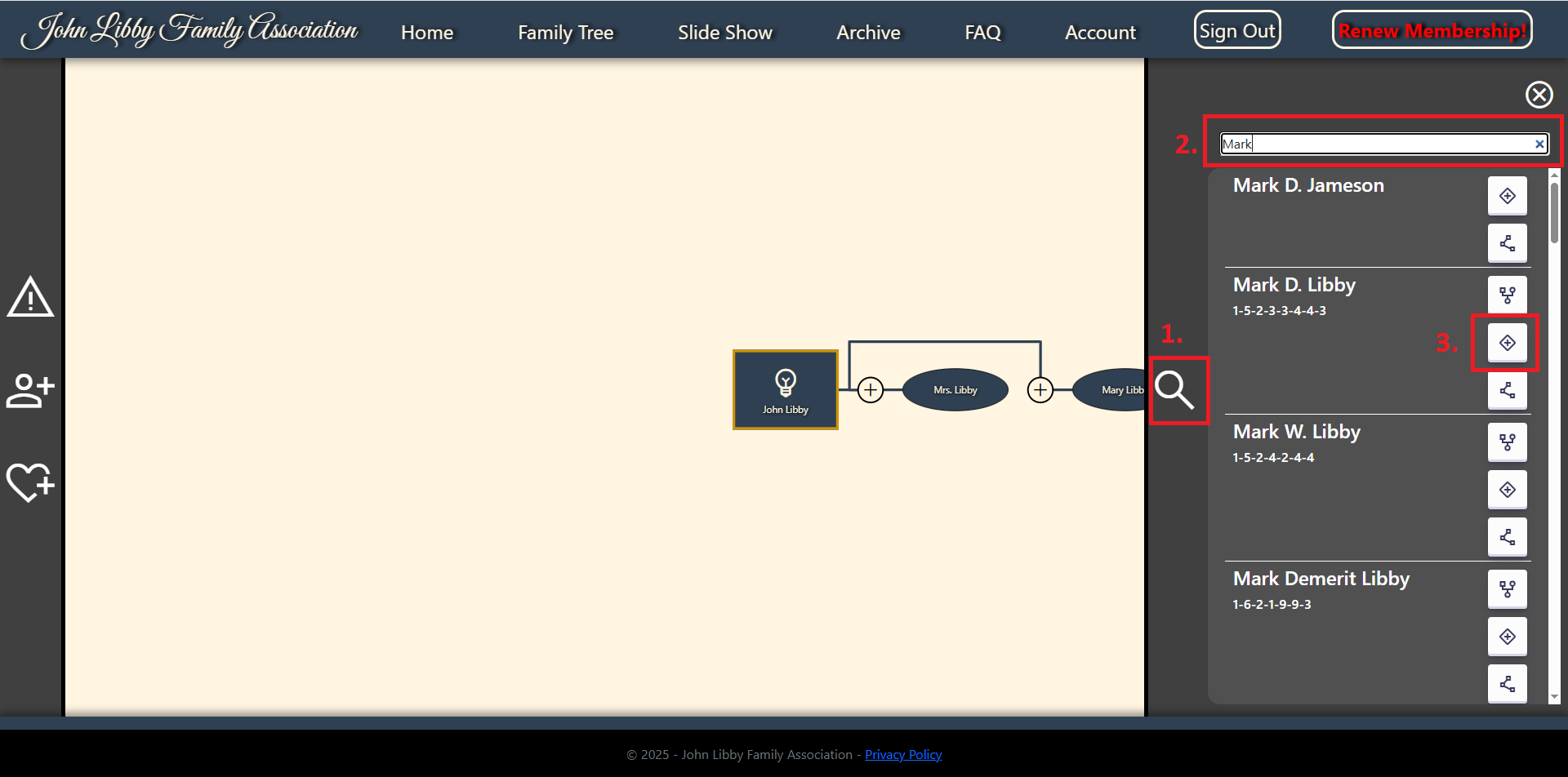
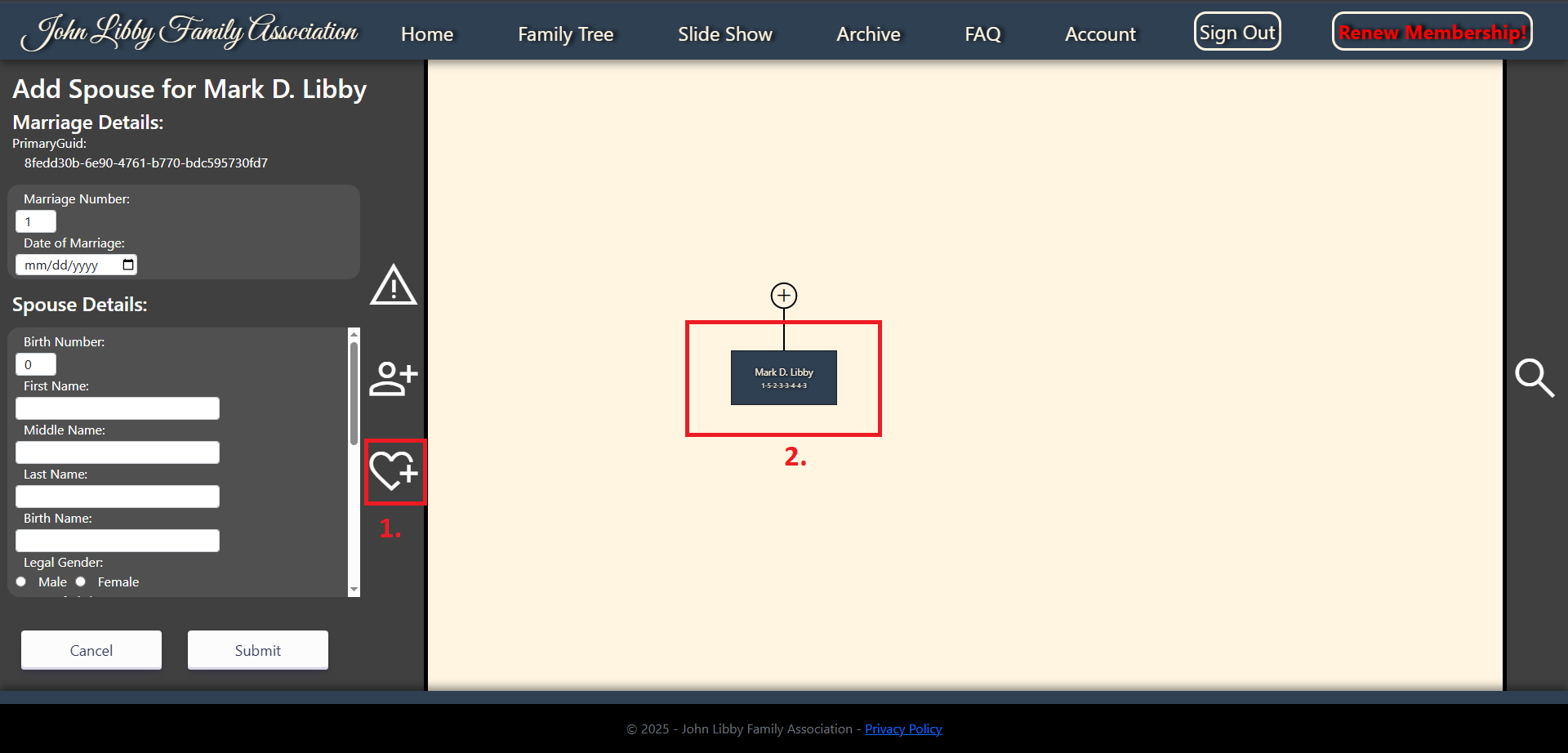
Next, click one of the options on the left, 'Edit Person', 'Add Child' and 'Add Marriage'. Once you've chosen an action you must select a node to build off of. You can do this by right clicking the node. Note: you must add a marriage before you can add a child. With any of these, just enter what information you have, most are not required to add a person.
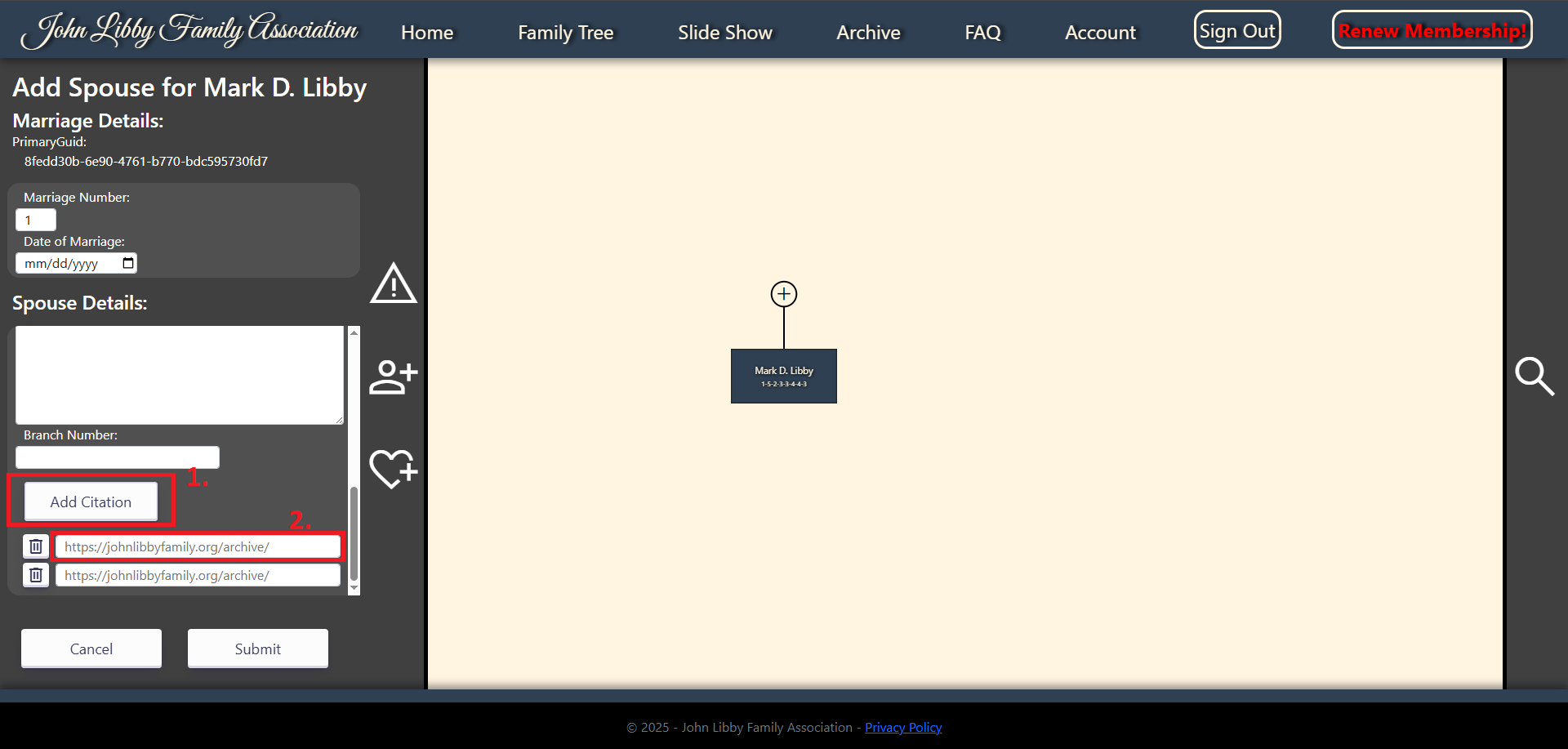
If you have them, please add citations of any supporting documents you have. Note: the citation link will only accept documents stored on our archive.
Q. How can I upload a file to use as a supporting document citation?
Start by navigating to the 'Archive' page. Then click 'Upload'. Here you can either drag and drop a file or click to browse for a supported file. Note: Once submitted, it can take a couple hours for the file to pass inspection or even days if file volume is high. If you upload a PDF file, you will be asked if you want to perform OCR (Optical Character Reading) to convert image text, like from a scan or newspaper clippings into computer readable text. If you upload an image you will be asked to provide a caption.
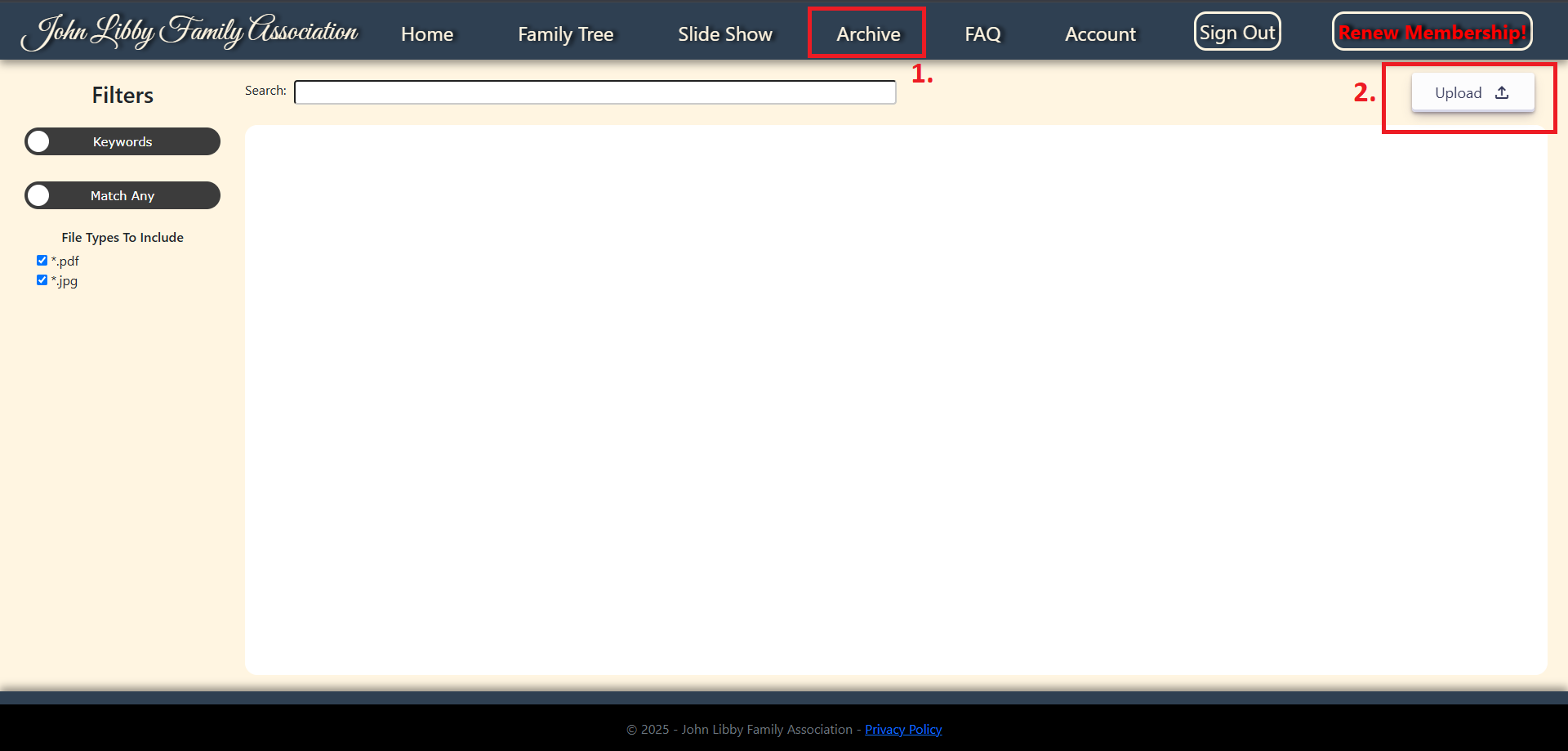
After the file is uploaded it can be found from the search bar either from the title or content. Then click the link to open the file.
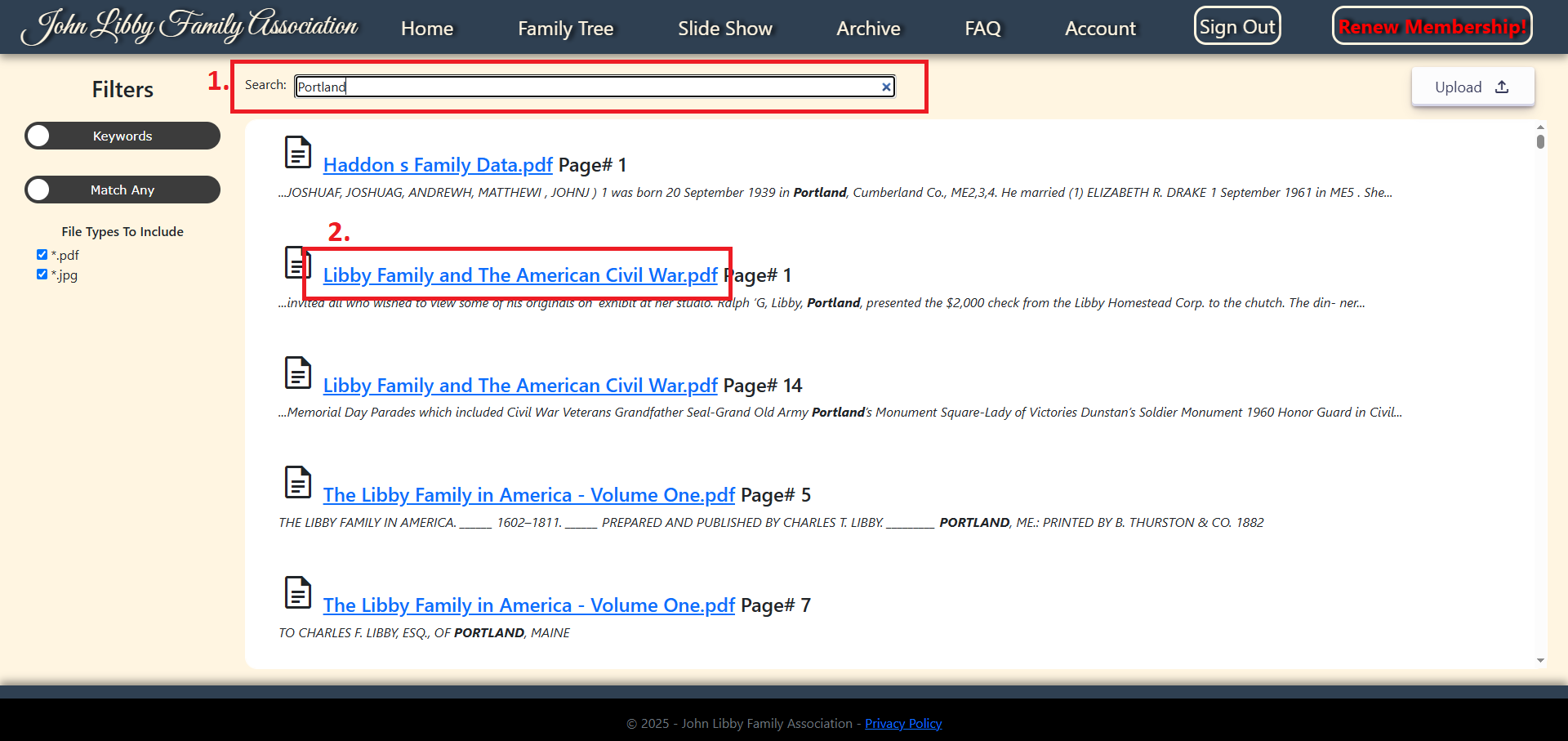
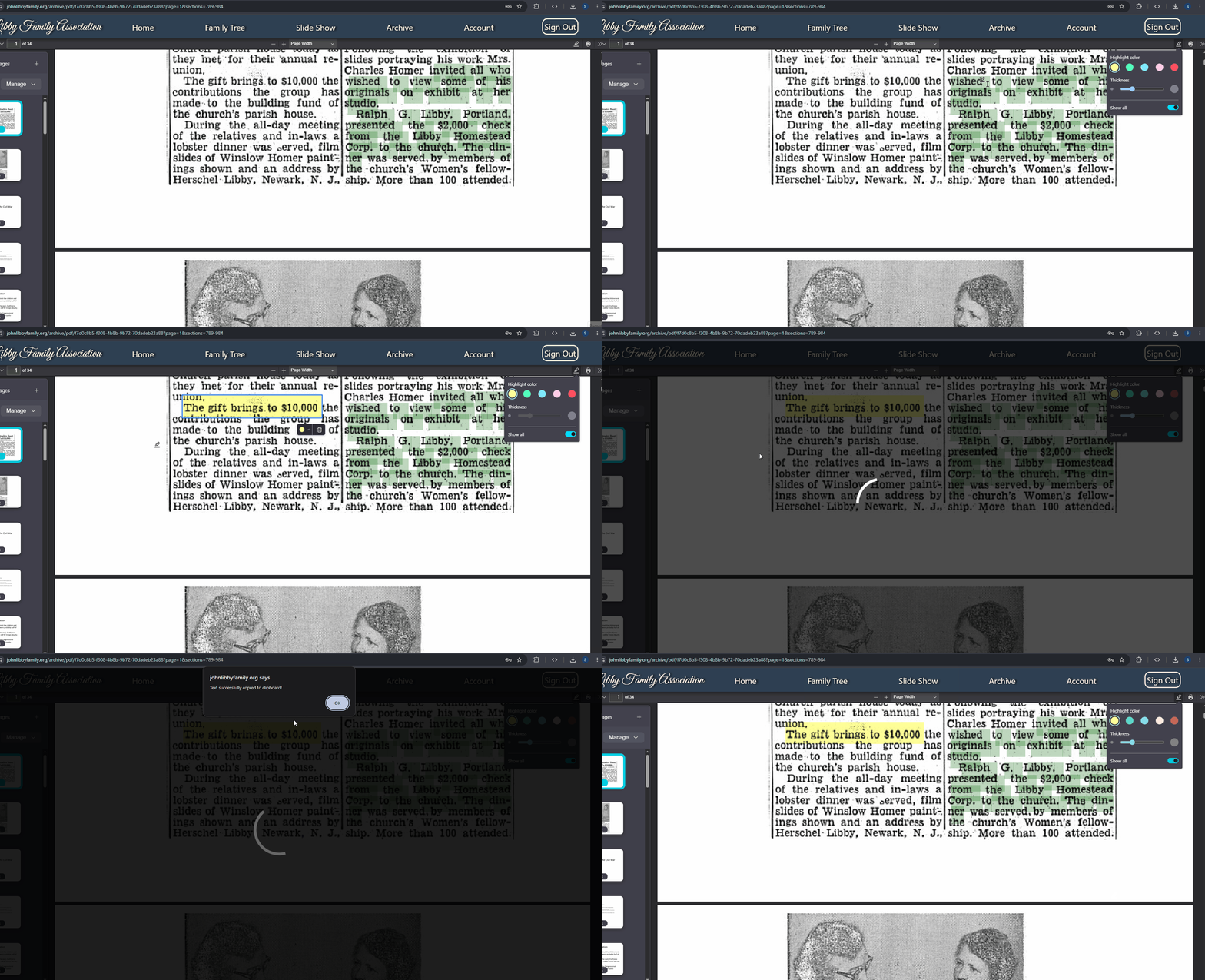
To generate a citation, select the highlight tool, highlight a section of text, then right click somewhere else and select 'Generate Citation'. If you stay on page it will be copied to your clipboard to be pasted. If any issues arise you will be given an alert to copy the link yourself.